
Translation Guide
The Cheat UI can translate game data (Items, Variables, Switches, Maps) in real-time. This guide explains how to use these features properly.
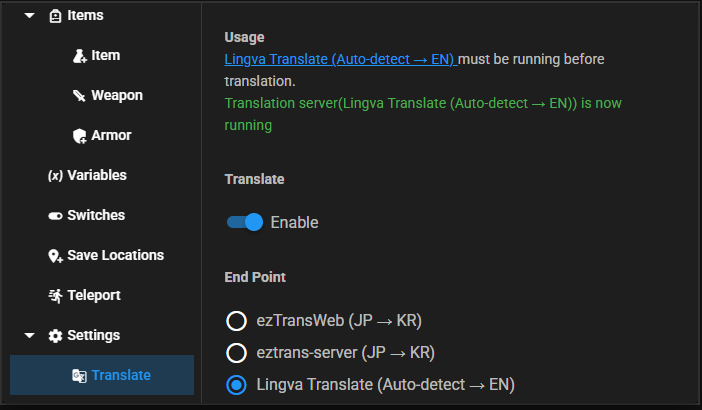
Before you begin
- Pick an engine in the Settings or Translate tab (see the Engines Guide for more details).
- If using a local engine (Lingva Docker, Ollama, ezTrans), ensure the background server is running.
- Check your target language (Target default is English).
Batch Translation
The Batch Translation feature is the fastest way to translate entire sections of the game.
- Open the cheat window (Ctrl + C).
- Go to the Translate tab.
- Select a category (e.g., Variables).
- Click Batch Translate.
- Wait for the process to complete — you will see a Metrics Report in the JS console with throughput and latency data.
TIP
Use the Lingva Docker Cluster for the best balance of speed and reliability during batch operations.
Real-time / On-demand Translation
You don't always need to translate everything at once.
- Variables & Switches: Hover over or edit a variable/switch in their respective tabs to trigger a translation for just that name.
- Maps: When you enter a new map, its name can be translated automatically or manually in the Teleport tab.
The Translation Bank (Cache)
To save performance and avoid repeat API calls, the plugin uses a Translation Bank.
- All successful translations are saved to
www/cheat-settings/translation-bank.json(MV) orcheat-settings/translation-bank.json(MZ). - If the plugin sees the same Japanese text again, it will pull the translation instantly from the bank instead of making a new request.
- You can share your
translation-bank.jsonwith other players to help them skip the translation wait!
Performance Tips
Use Batches
The engine is optimized to batch up to 80 strings into a single HTTP request. This increases throughput from ~1 string/sec to ~160 strings/sec.
Use Local Nodes
If you are translating a large game (10,000+ strings), a local Lingva Docker Cluster is highly recommended. It bypasses all rate limits and performs the task in minutes instead of hours.
Check the Console
Press F12 to see the TRANSLATION METRICS REPORT. This shows:
- Wall-clock time elapsed.
- Strings per second (Throughput).
- Error rates (429 Rate Limits, timeouts).
- Average latency per batch.